
Cybersecurity Basics Everyone Should Know
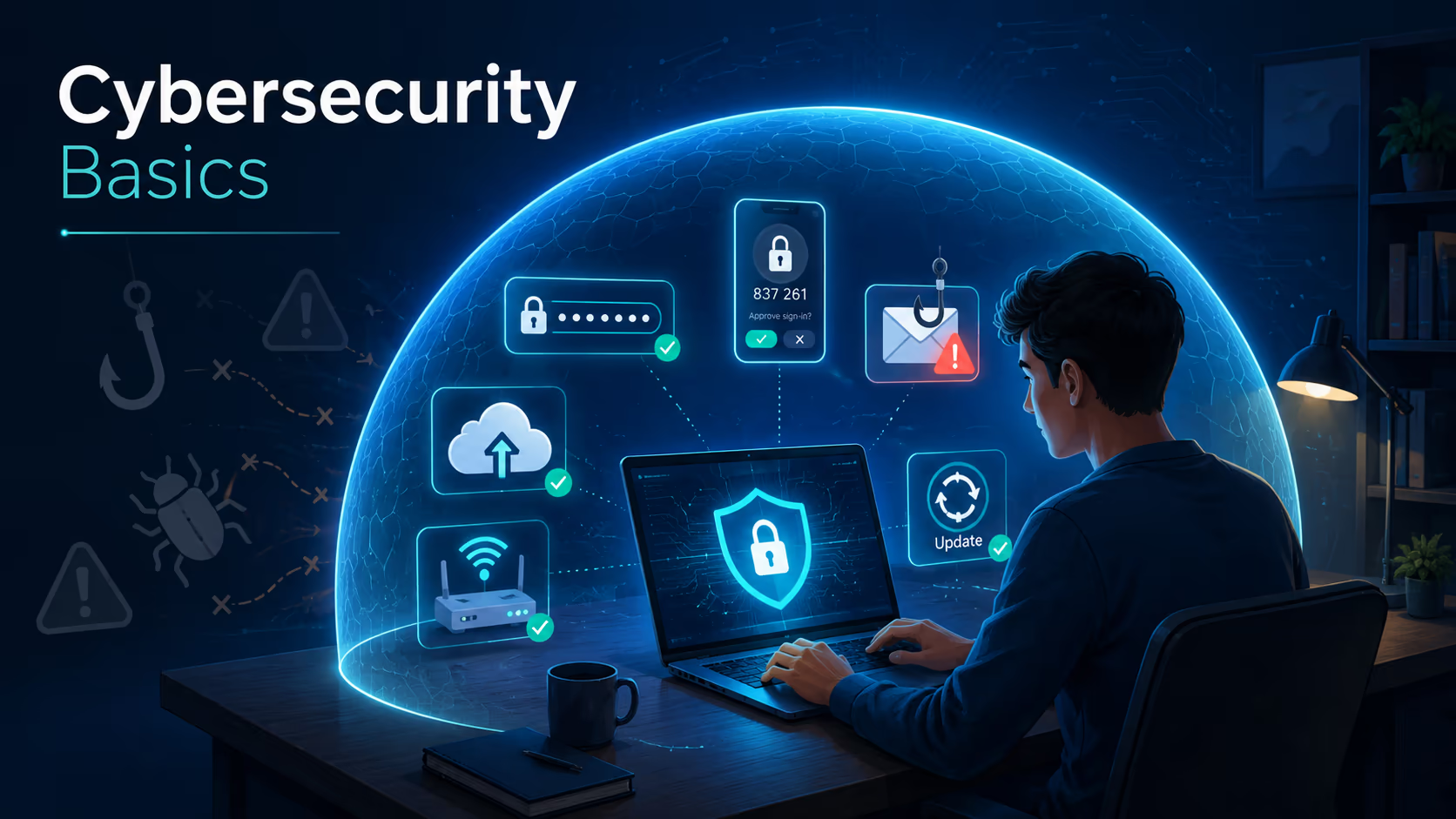
Cybersecurity basics are no longer only for IT teams, large companies, or people who work with sensitive data. Today, almost everyone depends on digital accounts, mobile apps, online banking, cloud storage, email, messaging platforms, and connected devices.
That means we all carry some level of cyber risk.
A weak password, one rushed click, an outdated phone, or a fake message can expose personal information, money, work files, family photos, business data, or private conversations. The good news is that we do not need to become cybersecurity experts to become much safer online.
We need to understand the main risks, build better habits, and use a few simple protections consistently.
This guide explains the cybersecurity basics everyone should know in clear, practical language. We will look at what cybersecurity means, why it matters, how common attacks work, what mistakes to avoid, and which steps make the biggest difference.
What Cybersecurity Means
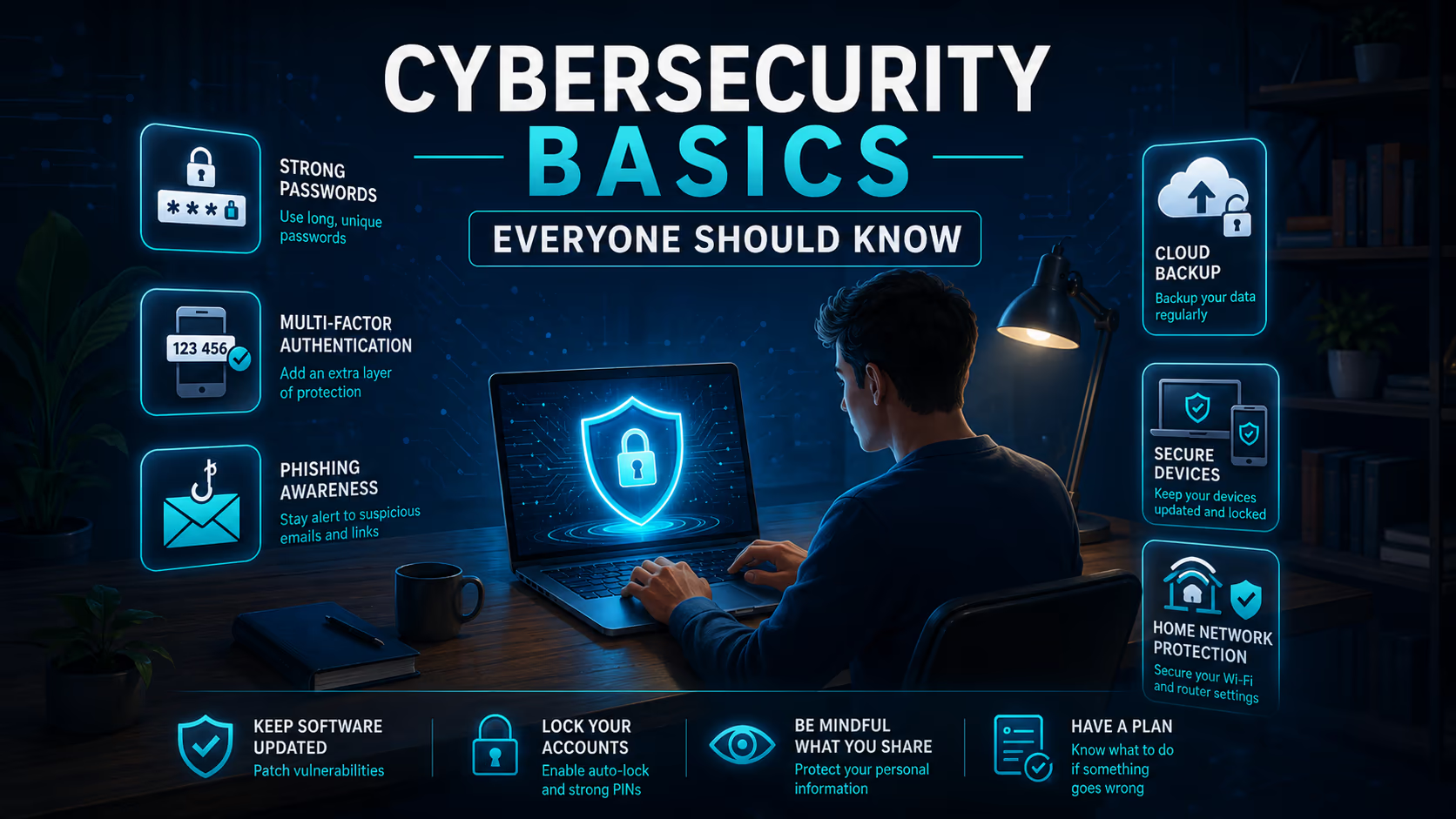
Cybersecurity is the practice of protecting computers, phones, accounts, networks, apps, and data from unauthorized access, theft, damage, scams, and disruption.
In simple terms, cybersecurity is about keeping digital life safe.
For an individual, that might mean protecting email, bank accounts, social media profiles, photos, and personal documents.
For a family, it might mean keeping children safe online, securing shared devices, and protecting the home network.
For a small business, it might mean protecting customer records, payment systems, employee accounts, invoices, and business operations.
Cybersecurity does not mean perfect protection. No system is completely risk free. The goal is to reduce risk, make attacks harder, notice problems sooner, and recover faster when something goes wrong.
Why Cybersecurity Basics Matter
Cyber attacks often work because of ordinary human moments. We are tired. We are busy. We trust a message that looks familiar. We reuse a password because it is easier. We delay an update because it appears at the wrong time.
Attackers understand this. Many attacks are designed to create urgency, fear, curiosity, or confusion.
Cybersecurity basics matter because they protect us from common threats.
Risk | What it can cause | Basic protection |
|---|---|---|
Weak or reused passwords | Account takeover | Use long unique passwords and a password manager |
Phishing messages | Stolen login details or malware | Pause before clicking and verify requests |
Outdated software | Exploited security flaws | Turn on automatic updates |
No backups | Permanent data loss after ransomware or device failure | Back up important files regularly |
Unsecured devices | Loss of private information | Use screen locks, updates, and security settings |
Cybersecurity also matters because our digital accounts are connected. If someone gets into one email account, they may reset passwords for other services. If they get into a cloud account, they may access documents and photos. If they get into a business account, they may impersonate an employee and trick others.
Good security habits protect more than one device or one account. They protect your digital identity.
Key Cybersecurity Concepts Readers Should Understand
Threats
A threat is anything that could cause harm to your digital life. Examples include scammers, malware, stolen passwords, fake websites, unsafe apps, lost devices, and insider misuse.
Vulnerabilities
A vulnerability is a weakness that can be exploited. It might be an old app, a weak password, a misconfigured router, or an employee who has not been trained to spot scams.
Risk
Risk is the chance that a threat will use a vulnerability and cause harm. Cybersecurity is about reducing that chance and limiting the damage if it happens.
Authentication
Authentication is how a system checks that you are really you. Passwords, passcodes, fingerprints, face unlock, security keys, and one time codes are all examples.
Multi Factor Authentication
Multi factor authentication means using more than one proof to sign in. For example, you might enter a password and then approve a login on your phone.
This matters because a stolen password alone may not be enough for an attacker to enter your account.
Malware
Malware is harmful software. It can steal information, spy on activity, damage files, lock a device, or give an attacker remote access.
Ransomware
Ransomware is a type of malware that locks or encrypts files and demands payment. Even if a victim pays, there is no guarantee that files will be restored or that stolen data will not be misused.
Phishing
Phishing is a scam that uses fake messages, emails, websites, calls, or texts to trick people into sharing information, clicking harmful links, or sending money.
How Cyber Attacks Usually Work
Many attacks follow a simple pattern.
First, the attacker finds a target. This could be a person, a company, or a group of random email addresses.
Next, the attacker looks for a way in. They may send a fake message, guess or reuse stolen passwords, exploit old software, or trick someone into downloading a file.
Then, they try to take something valuable. This might be money, account access, private data, business records, or personal information.
Finally, they try to hide, move to other accounts, or pressure the victim. In some cases, they may impersonate the victim and attack friends, coworkers, or customers.
A simple example is a fake delivery message. It says a package cannot be delivered unless you confirm your address. The link opens a fake website. You enter your details. The attacker now has information they can use for fraud or further scams.
Another example is a reused password. If one old website is breached and your password appears in stolen data, attackers may try the same email and password on banking, shopping, email, and social media accounts. This is why unique passwords matter.
Main Benefits of Good Cybersecurity Habits
Strong cybersecurity basics help in several practical ways.
They reduce the chance of account theft. Long unique passwords and multi factor authentication make it much harder for attackers to sign in.
They protect your money. Better habits can help prevent fake invoices, payment scams, banking fraud, and shopping account abuse.
They protect your privacy. Secure accounts and devices help keep photos, messages, documents, health information, and identity details away from criminals.
They help you recover faster. Backups, recovery options, and updated devices can reduce the damage from malware, theft, accidents, and hardware failure.
They make work safer. For employees and small businesses, basic protections can prevent downtime, customer harm, reputation damage, and costly incidents.
The Most Important Cybersecurity Basics
Use Long Unique Passwords
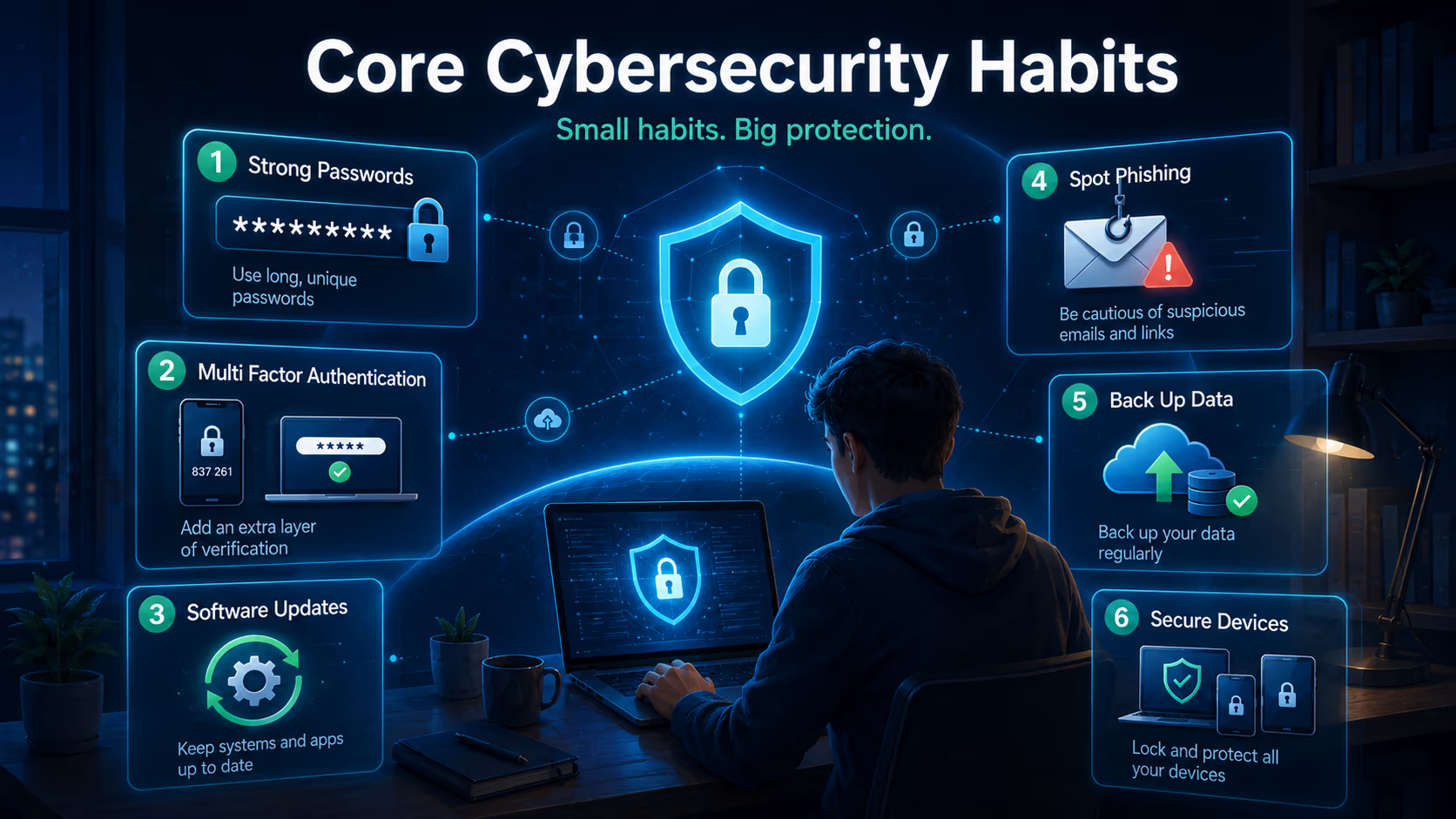
A strong password should be long, unique, and hard to guess. The most important word here is unique.
Do not reuse passwords across accounts. If one account is compromised, reused passwords can open the door to many others.
A good password can be a long passphrase, a random password created by a password manager, or another long secret that is not based on obvious personal information.
Avoid passwords based on personal details, pet names, simple patterns, or any password you already use somewhere else.
A password manager can create and store strong passwords for you. This is usually safer than trying to remember many passwords or saving them in notes, messages, or spreadsheets.
Turn On Multi Factor Authentication
Multi factor authentication is one of the most effective basic protections for important accounts.
Use it especially for email accounts, banking and payment apps, cloud storage, social media, work accounts, password manager accounts, and shopping accounts that store payment information.
Not all multi factor methods are equal. App based prompts, authenticator apps, passkeys, and security keys are often stronger than text message codes. However, using text message codes is still usually better than using only a password.
The best choice depends on what the service offers and what you can use reliably.
Keep Software Updated
Updates are not only about new features. They often fix security weaknesses.
Update your phone operating system, computer operating system, browser, mobile apps, security software, router firmware, and smart devices when updates are available.
Turning on automatic updates is one of the simplest ways to improve cybersecurity. It reduces the chance that you forget or delay important fixes.
Learn to Spot Phishing
Phishing messages often look like they come from trusted companies, banks, delivery services, government agencies, bosses, coworkers, or friends.
Common warning signs include urgent language, threats of account closure, unexpected attachments, requests for passwords or codes, links that do not match the real website, unusual payment requests, strange timing, or a sender address that looks slightly wrong.
A useful habit is to pause before acting. If a message asks for money, login details, a one time code, gift cards, personal information, or urgent action, verify it through another trusted channel.
For example, do not use the phone number inside a suspicious email. Use the official app, a saved contact, or a number you already know is correct.
Back Up Important Data
Backups protect you from ransomware, accidental deletion, stolen devices, broken hard drives, and damaged phones.
A good backup plan includes at least two types of backup.
Backup type | Best use | Important note |
|---|---|---|
Cloud backup | Photos, documents, phone data, everyday files | Protect the cloud account with a strong password and multi factor authentication |
External drive backup | Large files, business records, local computer backup | Disconnect it when not in use to reduce ransomware risk |
System backup | Restoring a computer after serious failure | Test recovery before you need it |
A backup is only useful if you can restore it. Check your backups occasionally.
Secure Your Devices
Your phone and computer hold access to many accounts. Protect them carefully.
Use a screen lock. Set a strong passcode, password, fingerprint, or face unlock. Avoid simple passcodes that others can guess.
Turn on device tracking features when available. They can help locate, lock, or erase a lost device.
Remove apps you no longer use. Unused apps may still hold data or permissions.
Download apps only from trusted app stores. Be careful with apps that ask for unnecessary permissions.
Do not ignore security warnings. They may be inconvenient, but they are often there for a reason.
Protect Your Home Network
Your home network connects your phones, laptops, TVs, cameras, speakers, and other devices. A poorly secured network can create unnecessary risk.
Start with your router.
Change the default administrator password. Use a strong wireless password. Use modern security settings if your router supports them. Keep router firmware updated. Create a separate guest network for visitors or smart devices if available.
Also review connected devices from time to time. If you see a device you do not recognize, investigate it.
Be Careful on Public Networks
Public wireless networks in cafes, airports, hotels, and shared spaces can be convenient, but they are not always trustworthy.
Avoid signing in to sensitive accounts on public networks unless necessary. Use mobile data for banking or other sensitive tasks when possible. If you use a virtual private network, choose a reputable one and understand that it protects the connection, not every risky behavior.
A virtual private network does not make fake websites safe. It does not protect you from typing your password into a phishing page.
Limit What You Share Online
Attackers often use public information to make scams more convincing.
Public posts can reveal birthdays, travel plans, family names, workplace details, school names, pet names, and personal interests. These details can help attackers guess passwords, answer security questions, or create personalized scams.
We do not need to stop using social media. We just need to share with more awareness.
Review privacy settings. Think before posting personal details. Avoid using public information as password hints or account recovery answers.
Common Cybersecurity Mistakes
Reusing the Same Password
This is one of the most common and dangerous mistakes. One stolen password can become a master key for many accounts.
Trusting a Message Because It Looks Professional
Scam messages can use real logos, good design, correct spelling, and familiar company names. Appearance alone does not prove a message is safe.
Clicking Before Thinking
Many attacks rely on speed. The message creates pressure so you act before checking.
Delaying Updates Too Long
Old software may contain known security flaws. Attackers often target known weaknesses because many people do not update quickly.
Storing Passwords in Unsafe Places
Notes apps, screenshots, email drafts, and plain documents are risky places for passwords. A password manager is usually a better option.
Thinking Small Accounts Do Not Matter
Attackers can use any account as a stepping stone. A gaming account, old email, or unused social profile may still contain personal information or lead to other accounts.
Assuming Security Software Solves Everything
Security software can help, but it cannot protect against every scam, weak password, fake login page, or risky decision.
Practical Examples
Example One: The Fake Bank Alert
You receive a text that says your bank account is locked. It includes a link and tells you to act immediately.
A safer response is to avoid the link. Open your bank app directly or call the bank using a trusted number. If there is a real issue, you will see it there.
Example Two: The Work Invoice Scam
An employee receives an email that appears to come from a vendor. It says payment details have changed.
A safer response is to verify the change using a known phone number or existing contact method. Never rely only on the email thread for payment changes.
Example Three: The Reused Password Problem
You used the same password for an old forum and your email account. The forum is breached. Attackers try the same password on your email and get in.
A safer setup is to use a unique password for every account and turn on multi factor authentication for email.
Example Four: The Lost Phone
You lose your phone in a taxi. It has no screen lock.
Anyone who finds it may access email, photos, messages, apps, saved sessions, and account reset links.
A safer setup is to use a strong screen lock, enable remote lock and erase, keep backups, and protect key accounts with multi factor authentication.
Real Use Cases
For Students
Students often use shared networks, school platforms, cloud storage, social media, and mobile devices. Cybersecurity basics help protect assignments, identity documents, payment accounts, and personal messages.
The most useful steps are strong passwords, multi factor authentication, safe file sharing, and caution with messages claiming to be from school services.
For Parents and Families
Families may share devices, streaming accounts, tablets, gaming systems, and home networks. Good cybersecurity basics help protect children, payment methods, photos, and smart home devices.
Useful steps include parental controls where appropriate, separate user profiles, device updates, secure router settings, and conversations about scams.
For Remote Workers
Remote workers often use home networks, cloud tools, video calls, and work devices. A personal security mistake can become a workplace problem.
Useful steps include protecting work accounts with multi factor authentication, separating work and personal use when possible, keeping devices updated, and reporting suspicious messages quickly.
For Small Businesses
Small businesses may not have large IT teams, but they still handle valuable data. Customer records, invoices, payroll, email accounts, and payment systems are attractive targets.
Useful steps include backups, employee training, access controls, multi factor authentication, software updates, and a clear incident response plan.
A Simple Step by Step Cybersecurity Plan
Step 1: Secure Your Email First
Your email is often the key to your digital life. It can reset passwords for other accounts.
Use a long unique password. Turn on multi factor authentication. Review recovery email addresses and phone numbers. Remove old connected apps you do not recognize.
Step 2: Protect Financial Accounts
Update passwords for banking, payment, shopping, and tax accounts. Turn on alerts for transactions when available. Use multi factor authentication.
Step 3: Use a Password Manager
Choose a reputable password manager. Create a strong master password. Turn on multi factor authentication for the password manager. Begin by adding your most important accounts first.
Step 4: Update Devices and Apps
Turn on automatic updates. Remove apps you no longer use. Update browsers and operating systems.
Step 5: Back Up Important Files
Choose cloud backup, external backup, or both. Make sure important photos, documents, business files, and personal records are included.
Step 6: Practice Phishing Checks
Before clicking a link or opening an attachment, ask yourself whether the message was expected, whether the request is urgent, whether it asks for money, passwords, codes, or personal data, and whether you can verify it another way.
Step 7: Review Privacy and Account Settings
Check social media privacy settings. Review app permissions. Remove old devices from accounts. Make sure recovery options are current.
Tools and Options That Can Help
Tool or option | What it helps with | Important consideration |
|---|---|---|
Password manager | Creates and stores unique passwords | Protect it with a strong master password and multi factor authentication |
Authenticator app | Generates login codes or approvals | Save recovery codes safely |
Security key | Provides strong account protection | Best for high value accounts, but keep a backup key if possible |
Cloud backup | Protects files from device loss or failure | Secure the cloud account carefully |
Device security software | Helps detect malware and unsafe activity | Still requires careful user behavior |
Built in privacy settings | Limits tracking, permissions, and exposure | Review settings after major app or system updates |
Comparison With Common Alternatives
Password Manager Versus Memorizing Passwords
Memorizing one or two strong passwords is realistic. Memorizing a unique strong password for every account is not realistic for most people.
A password manager helps solve that problem. The main risk is that you must protect the password manager account very carefully.
Authenticator App Versus Text Message Codes
Text message codes are better than no second factor, but they can be vulnerable to phone number scams and message interception in some situations.
Authenticator apps, passkeys, and security keys can offer stronger protection when available.
Cloud Backup Versus External Drive Backup
Cloud backup is convenient and protects against lost or damaged devices. External drive backup gives you direct control and can be useful for large files.
The best choice for many people is both. Use cloud backup for convenience and an external backup for extra resilience.
Security Software Versus Safe Habits
Security software can detect many threats, but it cannot replace careful behavior. A fake login page may still trick someone into entering a password. A scam call may still persuade someone to send money.
The strongest protection combines tools with good habits.
Best Practices for Everyday Online Safety
Protect Your Most Important Accounts First
Start with email, banking, password manager, cloud storage, work accounts, and mobile phone accounts.
Use Unique Passwords Everywhere
Every account should have its own password. This limits damage if one service is breached.
Turn On Multi Factor Authentication
Use it wherever available, especially for important accounts.
Keep Devices Updated
Updates close security gaps. Turn on automatic updates when possible.
Verify Before You Trust
When a request involves money, passwords, codes, account access, or sensitive information, verify it through a trusted channel.
Back Up Data Regularly
A backup can turn a disaster into an inconvenience.
Reduce App Permissions
Apps should not have more access than they need. Review camera, microphone, location, contacts, and file permissions.
Lock Devices
Use strong screen locks on phones, tablets, and computers.
Be Careful With Shared Devices
Avoid saving passwords on public or shared computers. Sign out when finished.
Have a Recovery Plan
Know how to recover important accounts. Save backup codes securely. Keep recovery email addresses and phone numbers updated.
Important Things to Consider
Convenience and Security Need Balance
Security that is too difficult may not last. Choose protections you can use consistently.
For example, a password manager may feel unfamiliar at first, but it can become easier than remembering many passwords.
Not Every Account Has the Same Risk
Your email, bank, work, and cloud accounts deserve stronger protection than a one time account for a small website. Still, every account should use a unique password.
Cybersecurity Is Ongoing
Security is not a one time setup. New scams appear. Apps change. Devices age. People move jobs. Businesses add tools.
Review your security every few months.
Recovery Matters as Much as Prevention
Even careful people can be targeted. Make sure you can recover accounts, restore files, and respond quickly if something goes wrong.
What To Do If Something Goes Wrong
If you think an account was hacked, act quickly.
Change the password from a safe device.
Turn on multi factor authentication if it is not already enabled.
Sign out of other sessions if the account allows it.
Check recovery email addresses and phone numbers.
Review recent account activity.
Contact the service provider if needed.
Tell friends, coworkers, or customers if they may receive fake messages from your account.
Scan your device if you clicked a suspicious file or installed unknown software.
Monitor financial accounts if payment details were involved.
Save evidence before deleting suspicious messages.
If sensitive identity information was exposed, follow official identity theft recovery guidance in your country.
Final Thoughts
Cybersecurity basics are not about fear. They are about control.
We cannot stop every scam, breach, or technical problem, but we can make ourselves much harder to attack. Strong unique passwords, multi factor authentication, software updates, phishing awareness, secure devices, and reliable backups are simple habits with a big impact.
The best next step is to start small. Secure your email account today. Turn on multi factor authentication for your most important accounts. Set automatic updates. Back up important files. Then build from there.
Good cybersecurity is not one perfect action. It is a set of everyday habits that protect your identity, money, privacy, work, and peace of mind.