
Descript Review: Edit Podcasts and Videos Faster
Video and podcast editing can feel slow, messy, and frustrating.
You record a podcast episode. Then you need to remove mistakes, cut awkward pauses, clean the audio, add captions, create clips, and maybe turn the best parts into short videos.
For many creators, editing takes longer than recording.
That is the problem Descript tries to solve.
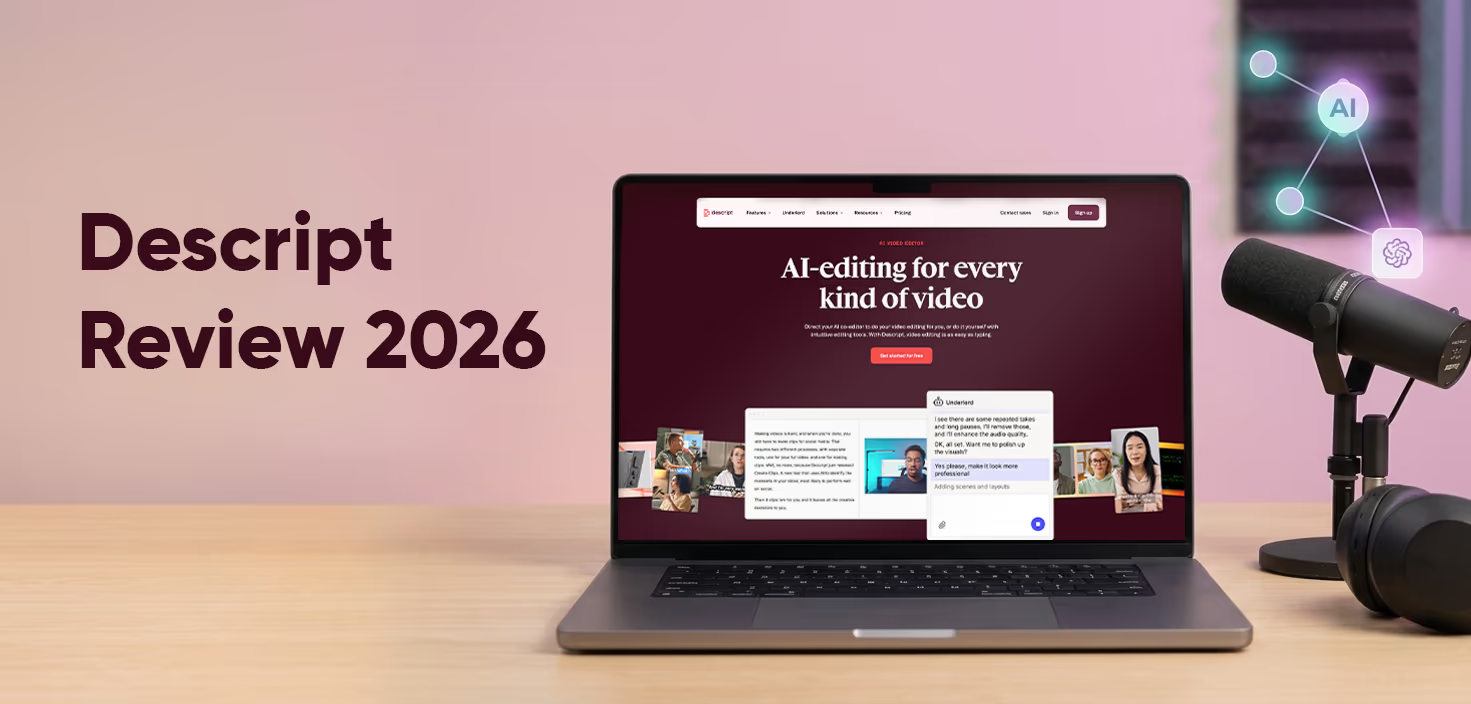
In this Descript review, we will look at how Descript helps creators edit videos and podcasts in a simpler way. We will cover its AI features, text-based editing, podcast tools, video tools, pricing, pros, cons, and whether it is worth using in 2026.
Descript is not a normal video editor. It is built around a simple idea: editing media should feel more like editing a document. Descript says users can edit video and audio by typing, and it also includes transcription, captions, Studio Sound, filler word removal, AI speech, avatars, screen recording, and its Underlord AI assistant.
So, is Descript really one of the easiest tools for AI video and podcast editing?
Let’s review it.
What Is Descript?

Descript is an AI-powered video and podcast editing platform.
It helps users record, transcribe, edit, clean, and publish audio or video content in one place.
The main thing that makes Descript different is text-based editing.
Instead of only editing clips on a timeline, Descript turns your recording into a transcript. Then you can edit the transcript like a document. When you delete words from the transcript, Descript removes those words from the audio or video.
This makes the tool easier for people who do not enjoy traditional editing software.
For example, if someone says “um,” repeats a sentence, or makes a mistake, you can remove that part by editing the text.
This is why Descript podcast editing is popular with podcasters, YouTubers, course creators, coaches, and social media teams.
It feels less technical than tools like Adobe Premiere Pro or Final Cut Pro.
Descript also works for screen recordings, tutorials, talking-head videos, interviews, webinars, product demos, and short social clips.
Who Is Descript Best For?
Descript is best for creators who work with spoken content.
That includes podcasts, interviews, YouTube videos, online courses, webinars, and social media clips.
It is especially useful for:
Podcasters
YouTubers
Course creators
Marketing teams
Coaches and consultants
Remote teams
Software reviewers
Business educators
Social media managers
Creators who repurpose long videos into short clips
If your content is mostly talking, teaching, explaining, interviewing, or presenting, Descript can save a lot of time.
A podcaster can use it to record an interview, remove filler words, clean audio, write show notes, and export the final episode.
A YouTuber can use it to cut mistakes, add captions, create clips, and improve sound.
A business team can use it for product demos, training videos, internal updates, and customer support content.
This Descript review is most positive for those users.
If you make cinematic films, heavy motion graphics, or complex visual effects, Descript may not be enough. But for creator-style video and podcast work, it is very strong.
How Descript Works
Descript starts by recording or importing your media.
You can upload an audio file, video file, screen recording, or remote interview. Descript then creates a transcript.
From there, your editing process becomes much easier.
You can remove words, fix mistakes, cut sections, add captions, clean audio, add music, create scenes, and export your project.
The workflow feels closer to writing than traditional editing.
This is helpful because many creators know what they want to remove, but they do not want to hunt through a timeline for every mistake.
For example, you can search the transcript for a word or phrase. You can find a mistake quickly. Then you can delete that sentence from the text.
This is one of Descript’s biggest strengths.
It makes editing feel less scary.
Best Descript Features
Descript has many tools, but some are more important than others.
Here are the features that matter most for creators.
1. Text-Based Video and Audio Editing
Text-based editing is the core feature.
It lets you edit audio and video by editing the transcript.
For podcast editing, this is very helpful. You can remove repeated words, long pauses, awkward sections, or off-topic parts without needing to cut waveforms manually.
For video editing, it is also useful because spoken sections can be trimmed quickly.
This makes Descript feel faster than a normal timeline editor for interview-style content.
It is not perfect for every project. But for talking-head videos and podcasts, it is one of the easiest workflows available.
2. Transcription
Descript automatically transcribes audio and video files.
The pricing page says Descript supports multi-language transcription in 25 languages and includes speaker detection for multiple speakers.
This is useful for podcasts and interviews.
Instead of sending audio to a separate transcription service, you can keep the transcript inside your editing project.
You can also use the transcript for blog posts, captions, show notes, quotes, and content repurposing.
That makes Descript more than an editor. It becomes a content workflow tool.
3. Studio Sound
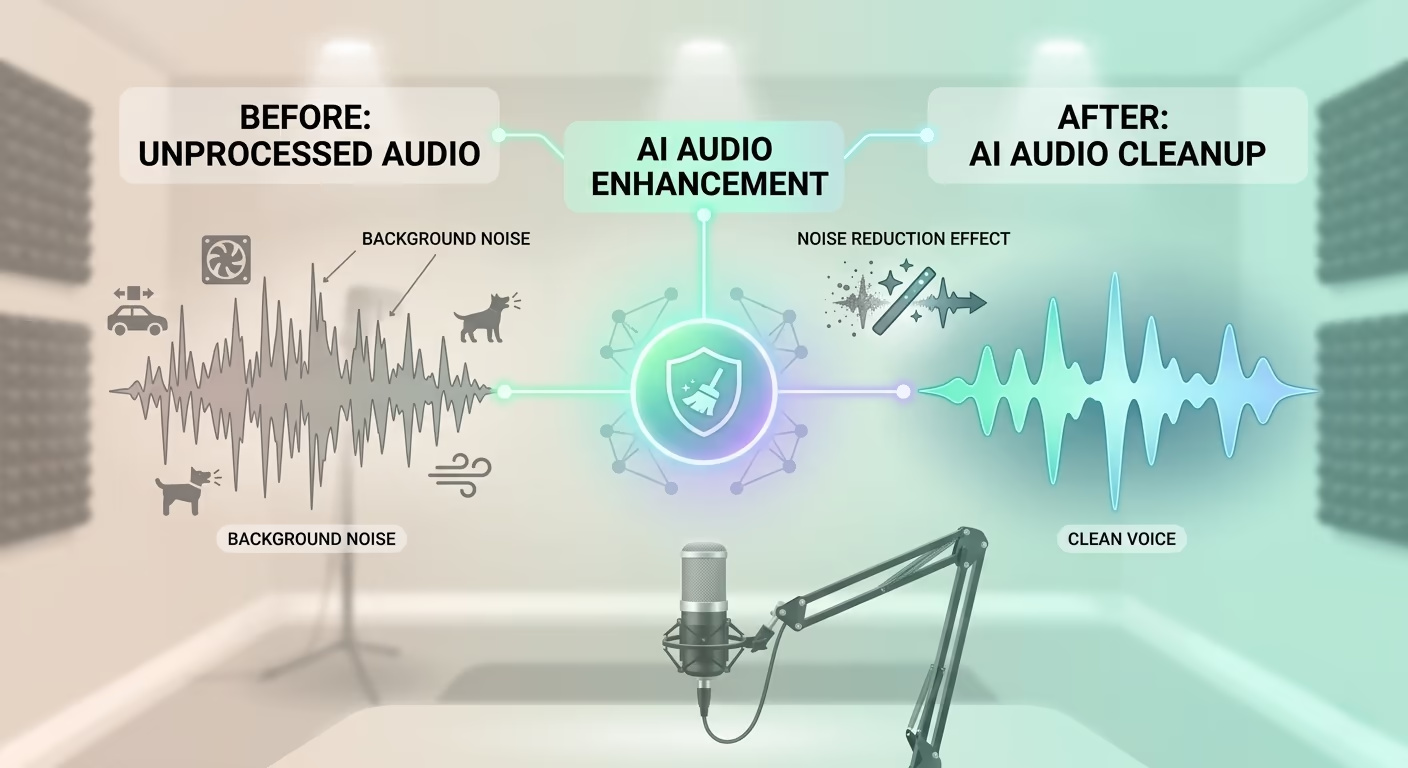
Studio Sound is one of Descript’s most useful AI audio features.
It uses AI-powered background noise removal and voice enhancement to make speech sound cleaner. Descript describes it as a one-click way to improve audio without needing pricey microphones or a soundproof room.
This is helpful for podcasters who record at home.
It is also useful for remote interviews where one guest has a bad microphone or noisy background.
Studio Sound will not fix every bad recording perfectly. If the audio is very distorted, clipped, or full of echo, it may still sound unnatural.
But for normal home recordings, it can make a big difference.
This is one reason Descript is a strong AI podcast editing tool.
4. Remove Filler Words
Descript can detect filler words like “um,” “uh,” and “you know.” Its help page says users can review detected filler words and choose how to handle each one, including removing both the text and audio.
This is a simple feature, but it saves a lot of editing time.
Many speakers use filler words without noticing. Removing them manually can be boring.
Descript makes this process much faster.
Still, we recommend reviewing the edits before exporting. If too many filler words are removed, speech can sound too sharp or robotic.
Natural speaking is not always perfect, and that is okay.
5. Underlord AI Co-Editor
Underlord is Descript’s AI co-editor.
Descript describes Underlord as an agentic co-editor that can act on your behalf, make edits based on your direction, and help users who do not know exactly how to edit a video.
This is one of Descript’s biggest newer updates.
Instead of clicking through every tool yourself, you can ask Underlord to help with tasks like cleaning audio, cutting retakes, adding captions, creating clips, applying layouts, or improving a video.
Descript’s own Underlord guide recommends giving detailed context, such as the platform, audience, tone, and goal of the video, instead of using very short prompts.
That matters because AI editing works better when it understands the purpose of your content.
For example, instead of saying:
“Edit this video.”
You could say:
“Turn this interview into a fast 60-second LinkedIn clip for small business owners. Keep the tone clear, helpful, and professional.”
That kind of direction gives Underlord more to work with.
6. Captions and Short Clips
Captions are important for social video.
Many people watch videos without sound, especially on mobile. Captions also make content easier to follow.
Descript includes caption tools and Create Clips features. Its official feature list includes captions, Create Clips, YouTube descriptions, show notes, and translation as part of its creator workflow.
This makes Descript useful for repurposing content.
A 45-minute podcast can become several short clips. A webinar can become social posts. A product demo can become a short sales video.
For creators who want more content from one recording, this is very useful.
Descript AI Video Editor Review
The Descript AI video editor is best for talking videos, screen recordings, interviews, and educational content.
It is not trying to replace every professional editing tool.
Instead, it makes common creator tasks easier.
You can record yourself, edit the transcript, add captions, clean sound, insert B-roll, and export a video without needing deep editing skills.
Descript has also improved its video design workflow. In Descript Season 8, the company introduced newer scenes, layouts, and Smart Transitions to help videos look more polished by default.
This matters because many creators can record a good message but struggle to make the video look professional.
Scenes and layouts help with structure.
Smart Transitions help the video feel smoother.
For simple creator videos, this is a big help.
But if you need advanced color grading, complex effects, detailed animation, or high-end film editing, Descript will feel limited.
It is great for speed.
It is not a full replacement for a pro post-production suite.
Descript Podcast Editing Review
Descript is one of the most useful tools for podcast editing.
The reason is simple: podcasts are mostly spoken words.
That matches Descript’s text-first workflow very well.
You can remove mistakes from the transcript. You can cut long pauses. You can remove filler words. You can clean the audio with Studio Sound. You can create show notes or clips for promotion.
This makes the editing process less tiring.
For solo podcasts, Descript can help you polish episodes faster.
For interviews, it helps you find quotes, cut awkward moments, and organize the conversation.
For video podcasts, it can also help with captions, multicam-style layouts, and social clips.
This is where Descript feels really practical.
It takes many boring editing tasks and makes them faster.
Descript Pricing
Now let’s talk about Descript pricing.
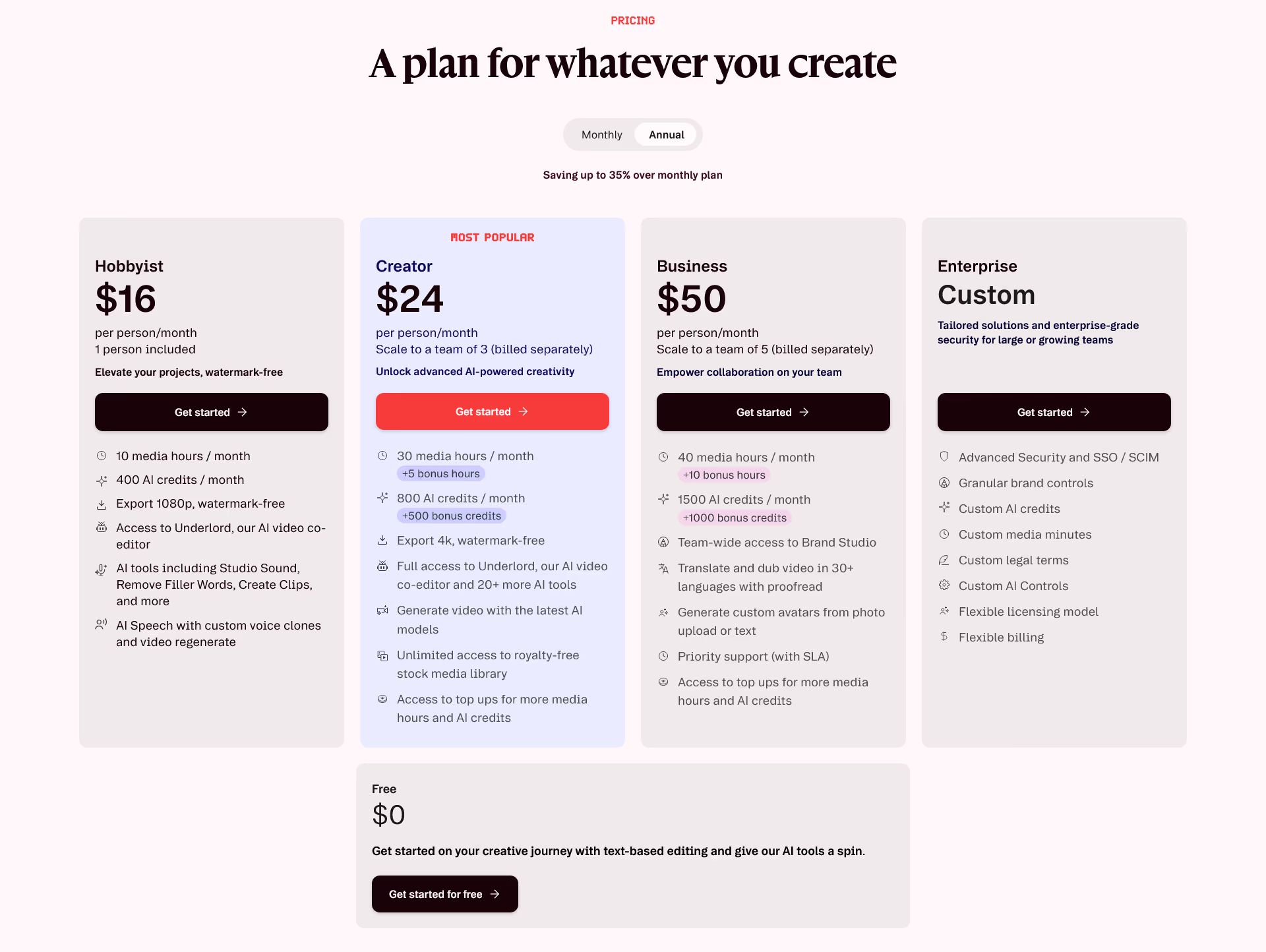
As of the current official pricing page, Descript has Free, Hobbyist, Creator, Business, and Enterprise options.
The Free plan includes 1 media hour per month, 100 AI credits, 720p watermark-free export, and limited use of Underlord and AI tools. The Hobbyist plan lists 10 media hours, 400 AI credits, 1080p export, Underlord access, Studio Sound, Remove Filler Words, Create Clips, and AI Speech.
The Creator plan lists 30 media hours, 800 AI credits, 4K watermark-free export, full access to Underlord and 20+ AI tools, video generation with latest AI models, and royalty-free stock media access.
The Business plan lists 40 media hours, 1,500 AI credits, team-wide Brand Studio, translation and dubbing in 30+ languages with proofread, custom avatars, and priority support.
For most serious creators, the Creator plan looks like the best balance.
The Free plan is good for testing. Hobbyist may work for casual creators. Business is better for teams.
Before paying, check your actual content volume.
If you edit one small podcast per month, you may not need a large plan.
If you produce weekly videos, podcasts, and clips, paid access will likely make more sense.
Pricing and limits can change, so always check the latest Descript pricing page before buying.
Pros and Cons
Pros | Cons |
|---|---|
|
|
Descript Alternatives
Descript is strong, but it is not the only option.
Adobe Premiere Pro is better for advanced professional editing.
Final Cut Pro is strong for Mac users who want fast timeline editing.
CapCut is simple and popular for short social videos.
Riverside is strong for remote podcast and video recording.
Adobe Podcast is useful for simple audio enhancement.
Runway is better for AI video generation and creative visual effects.
The best choice depends on your workflow.
Choose Descript if you want easy AI video and podcast editing in one place.
Choose a traditional editor if you need deep visual control.
Choose a social video app if you mostly make quick mobile clips.
Is Descript Easy to Use?
Yes, Descript is easier than most full video editors.
The text-based workflow makes a big difference.
People who feel nervous about editing timelines may enjoy Descript because it feels more like working in a document.
That said, the tool still has features to learn.
You need to understand media hours, AI credits, compositions, scenes, captions, exports, and AI tools.
The good news is that beginners can start with simple tasks.
Import a file. Edit the transcript. Remove filler words. Add Studio Sound. Export.
That simple workflow is enough for many creators.
Over time, users can explore Underlord, clips, layouts, AI speech, and video regenerate.
The experience is friendly, but not completely effortless.
You still need to check the final result.
Is Descript Worth It?
Yes, Descript is worth it for many podcasters, YouTubers, educators, and business creators.
It is especially worth it if your content is based on speech.
The biggest value is speed.
Descript helps you remove mistakes, clean audio, add captions, create clips, and repurpose content without using many separate tools.
This Descript review is positive because the software solves real problems for creators.
It does not just add AI for attention. Its AI tools support common editing tasks.
But it is not perfect.
If you need cinematic control, advanced effects, or detailed visual editing, Descript may feel too simple.
If you only edit one small project once in a while, the free plan may be enough.
But if you create podcasts, tutorials, interviews, or social videos often, Descript can save time and reduce editing stress.
Our rating: 4.4 out of 5
Final Verdict
Descript is one of the best tools for creators who want simple video and podcast editing.
It makes editing feel less technical by turning media into text. That one idea changes the whole workflow.
For podcasters, Descript can help with transcription, cleanup, filler words, edits, and show notes.
For video creators, it can help with captions, clips, layouts, screen recordings, and AI-assisted editing.
Underlord also makes the platform more useful in 2026, especially for people who want editing help without learning every manual step.
The main limits are clear.
Descript is not the best tool for advanced visual effects or professional film editing. AI results still need review. Some features depend on plan limits and AI credits.
But for everyday creators, the value is strong.
If we had to sum it up, we would say this:
Descript is not just an editor. It is a practical AI production workspace for people who create spoken content.
For podcasts, interviews, tutorials, webinars, and creator videos, Descript is absolutely worth trying.
Explore Descript